Use ChatEverywhere In-Class Quiz
Make Grading Faster and Easier for Teachers
Why is it worth using?
In everyday teaching, teachers often spend a lot of time marking assignments and quizzes, and even after grading, they still need to organize scores and record student performance.
With ChatEverywhere’s In-Class Quiz feature, you can:
Automatically generate quiz questions based on your curriculum
Let students answer directly in the system and have ChatEverywhere grade for you
Get a full-class learning analysis report with just one click
Below, you’ll see how the whole process works in three simple steps.
Step 1: Log in and create a new In-Class Quiz
First, open your browser or app and log in to your ChatEverywhere Teacher account.
If you haven’t activated a teacher account yet, you can contact us to learn more about available plans.
Once you log in, you’ll land on your account homepage. In the menu on the left side of the homepage, find and click on “Teacher Portal”.
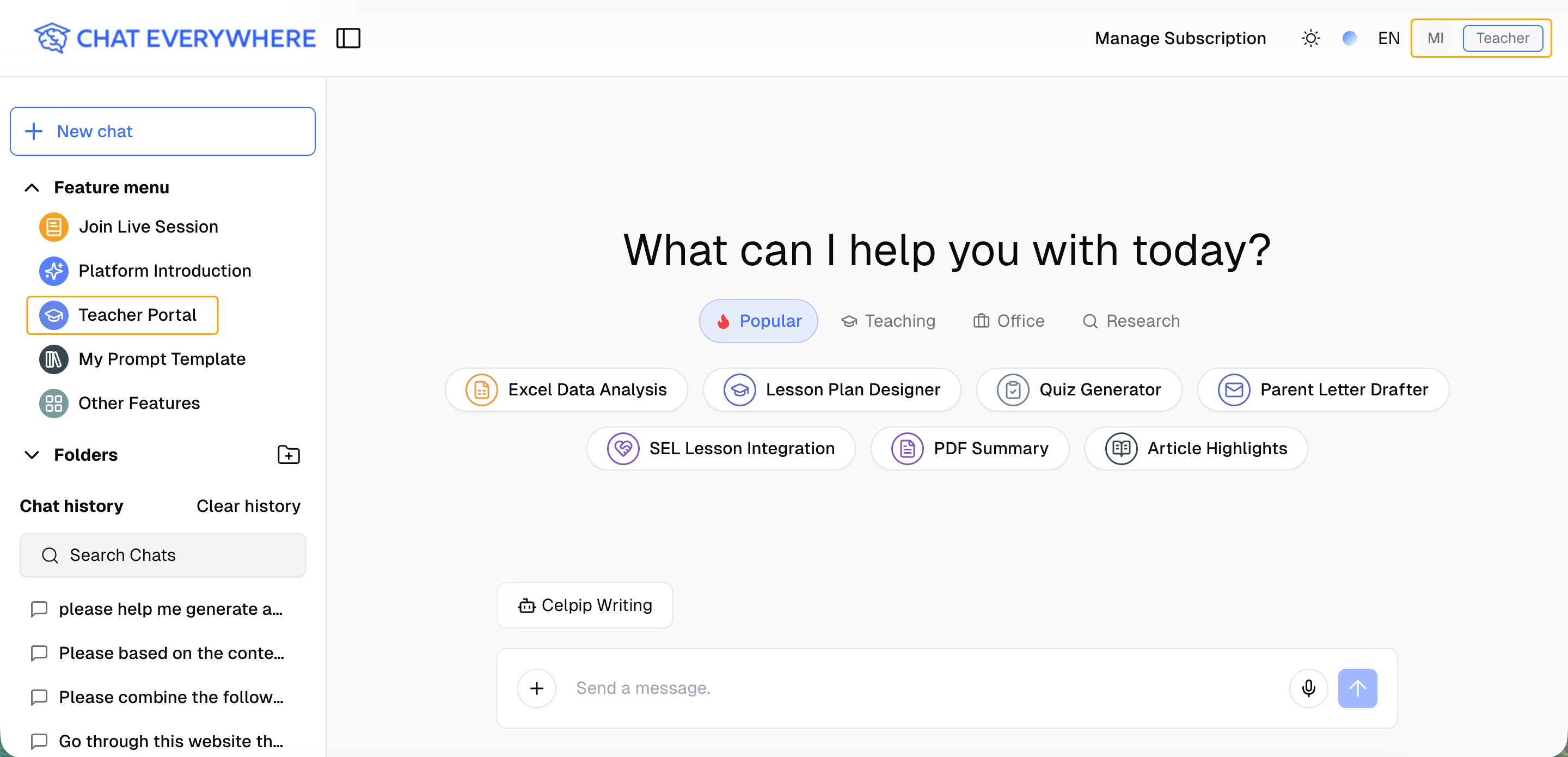
Next, this is where you’ll access all teacher tools. Inside the Teacher Portal, click “In-Class Quiz”, and then select “Create New In-Class Quiz”.`
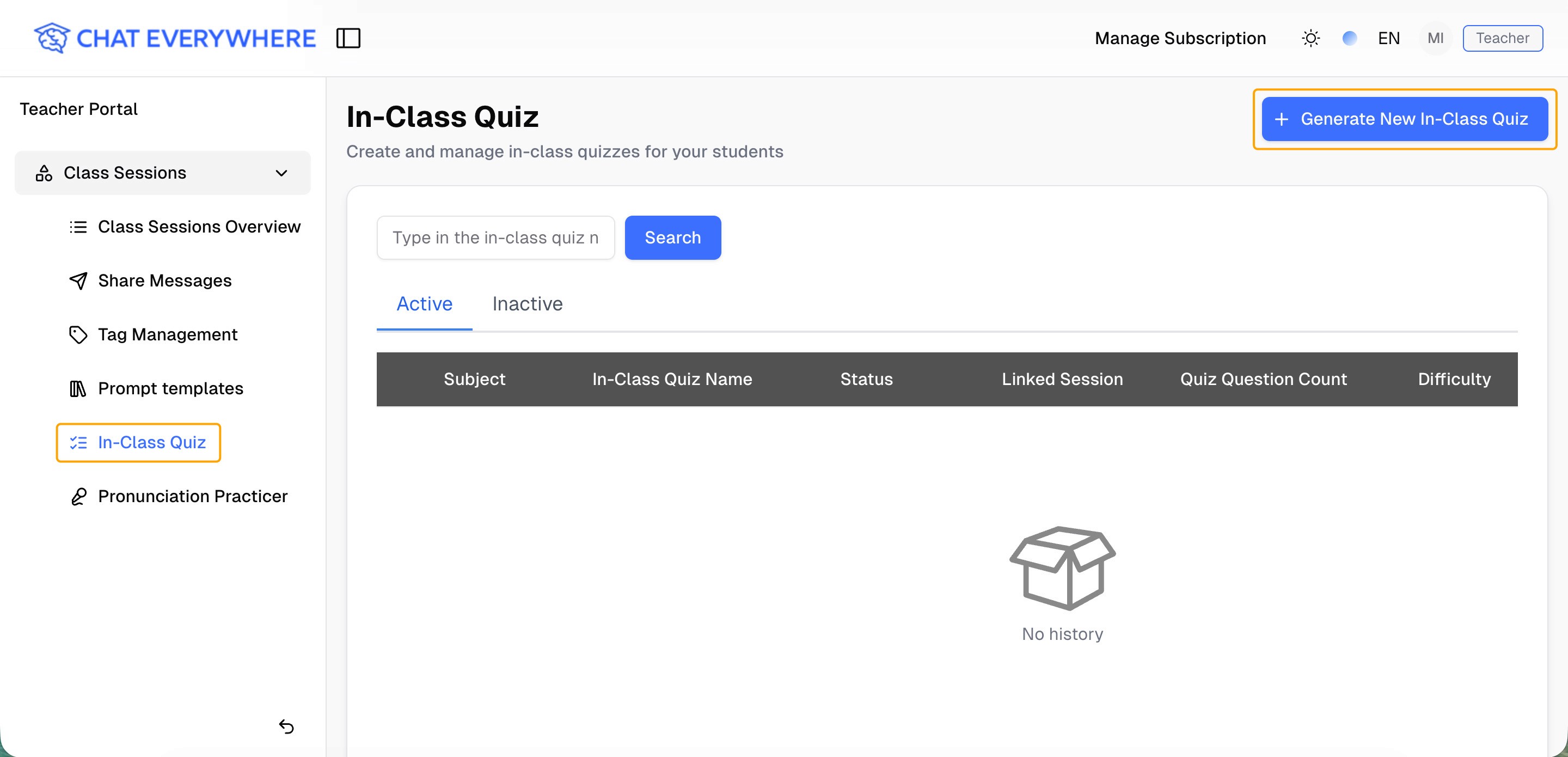
At this point, you’ve created a blank quiz and are ready to set up its content.
Step 2: Set up your quiz and let ChatEverywhere auto‑generate questions
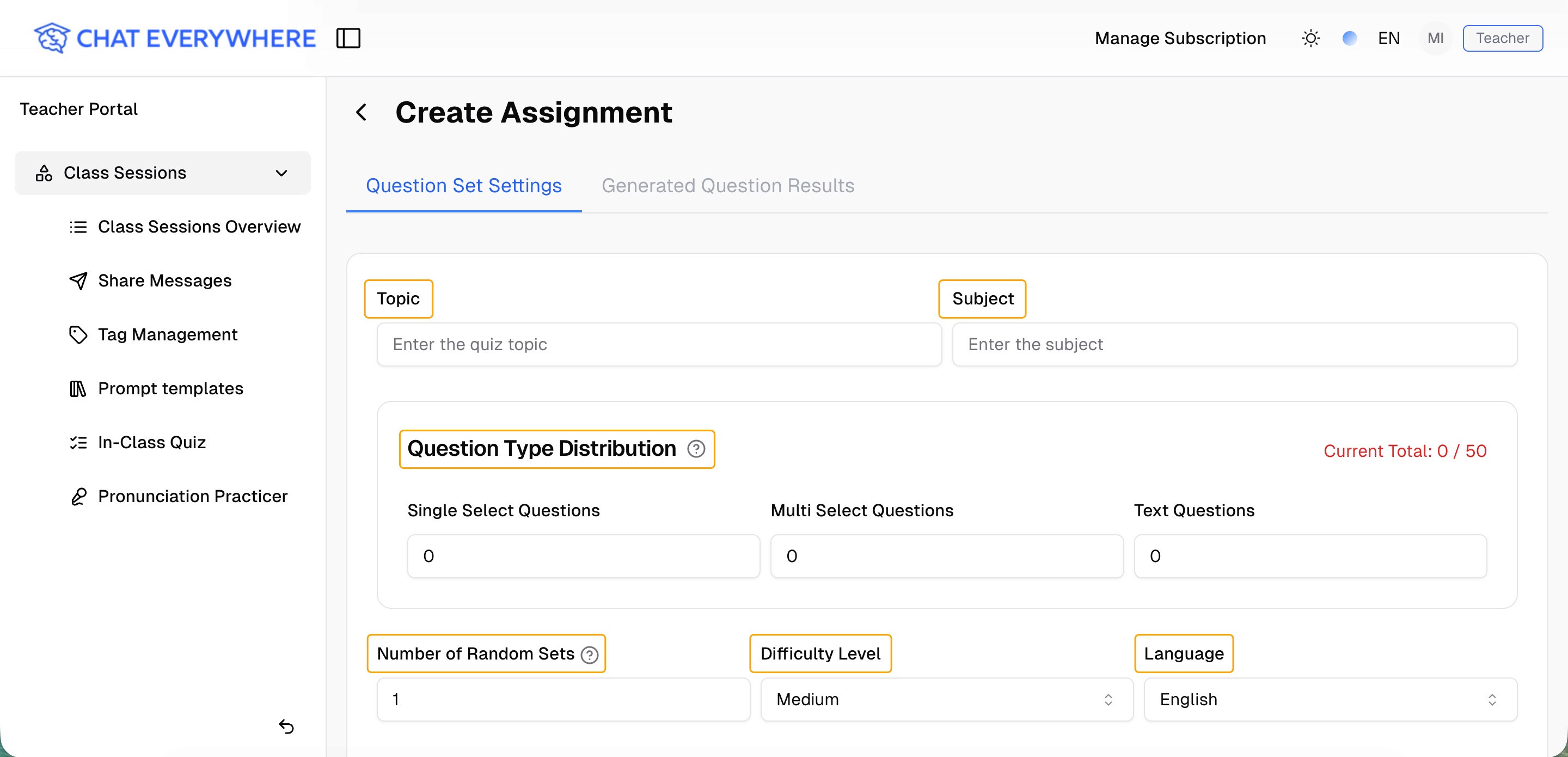
On the “Create Assignment” page, you’ll first enter some basic information.
You can start by specifying the Topic, Subject, Question Type Distribution. Then, chose the Number of Random Sets, Difficulty Level, and Language for this quiz.
All these settings help ChatEverywhere generate questions that match your students’ level and your learning objectives.
If you or your school already have existing question banks—past tests, quizzes, or practice worksheets—you can upload those files directly into ChatEverywhere at this stage.
After you upload them, you can choose whether you want the system to use them as a style and difficulty reference and generate new, similar questions, or to recreate the exact same questions in a digital format for quick online use.
This means you don’t need to rebuild your quizzes from scratch. Instead, you can turn your existing paper‑based materials into a flexible, reusable digital quiz with much less effort.
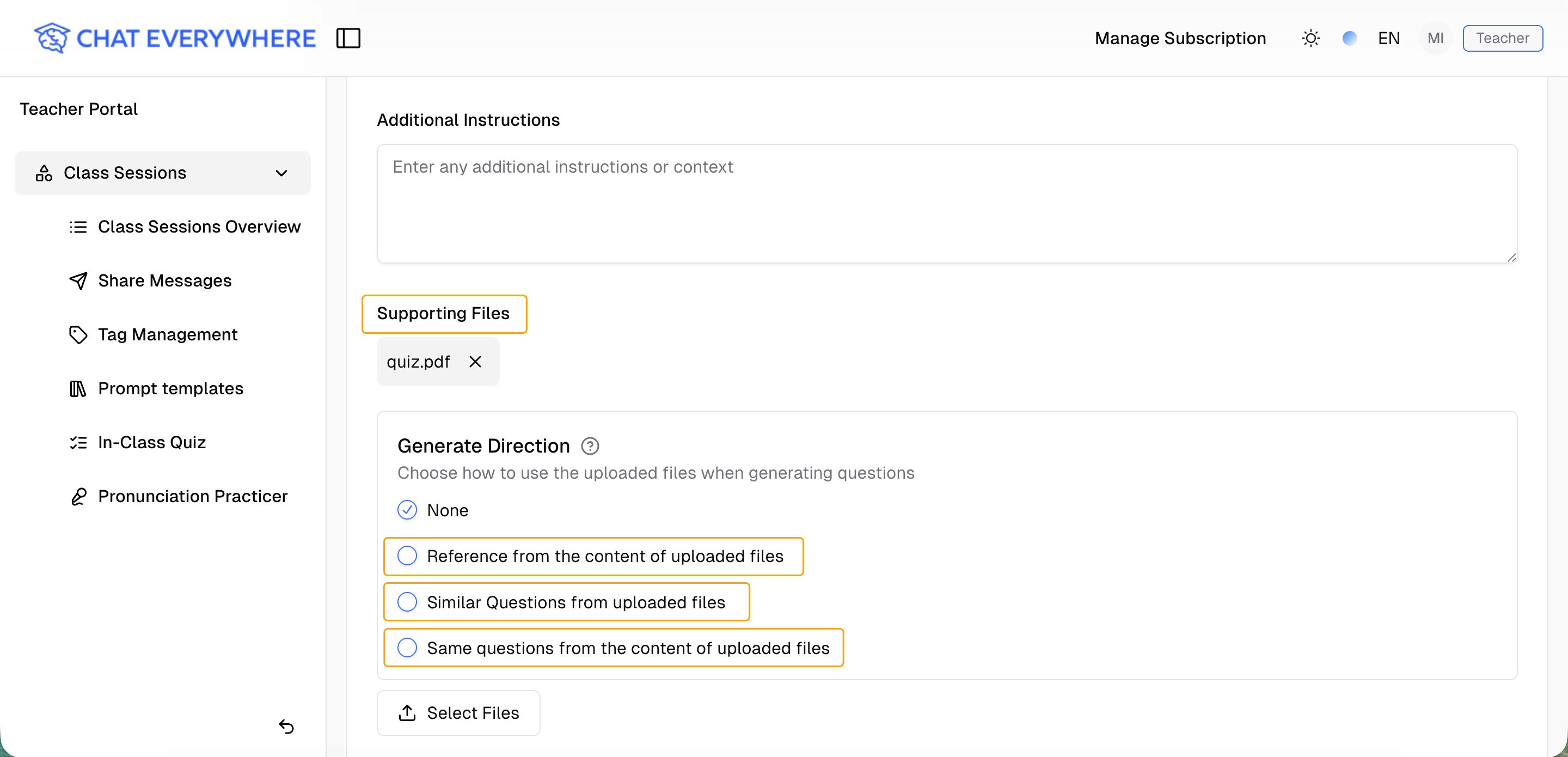
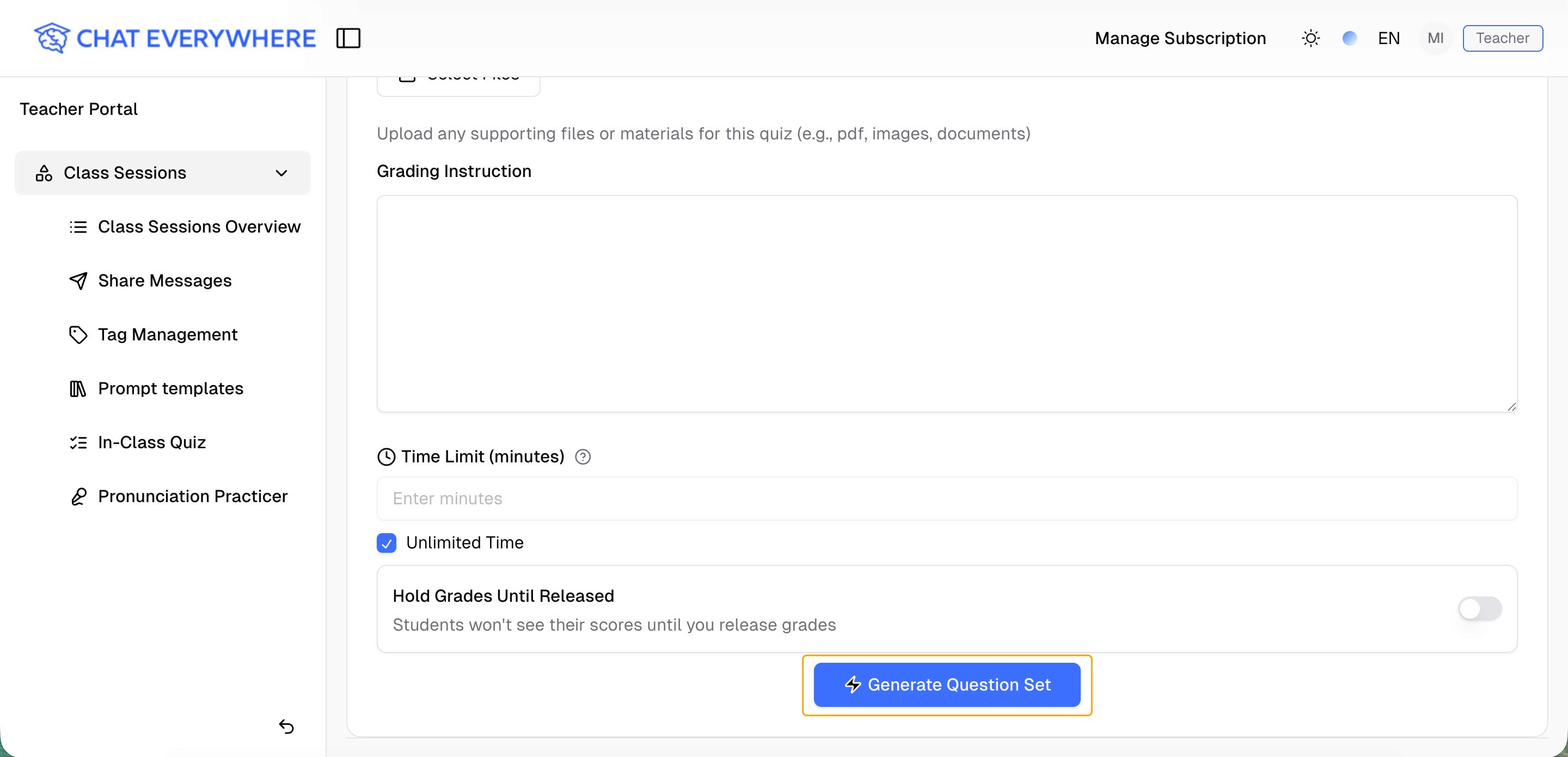
Once all the settings look correct, simply click “Generate Question Set”, and ChatEverywhere will automatically create a full quiz for you.
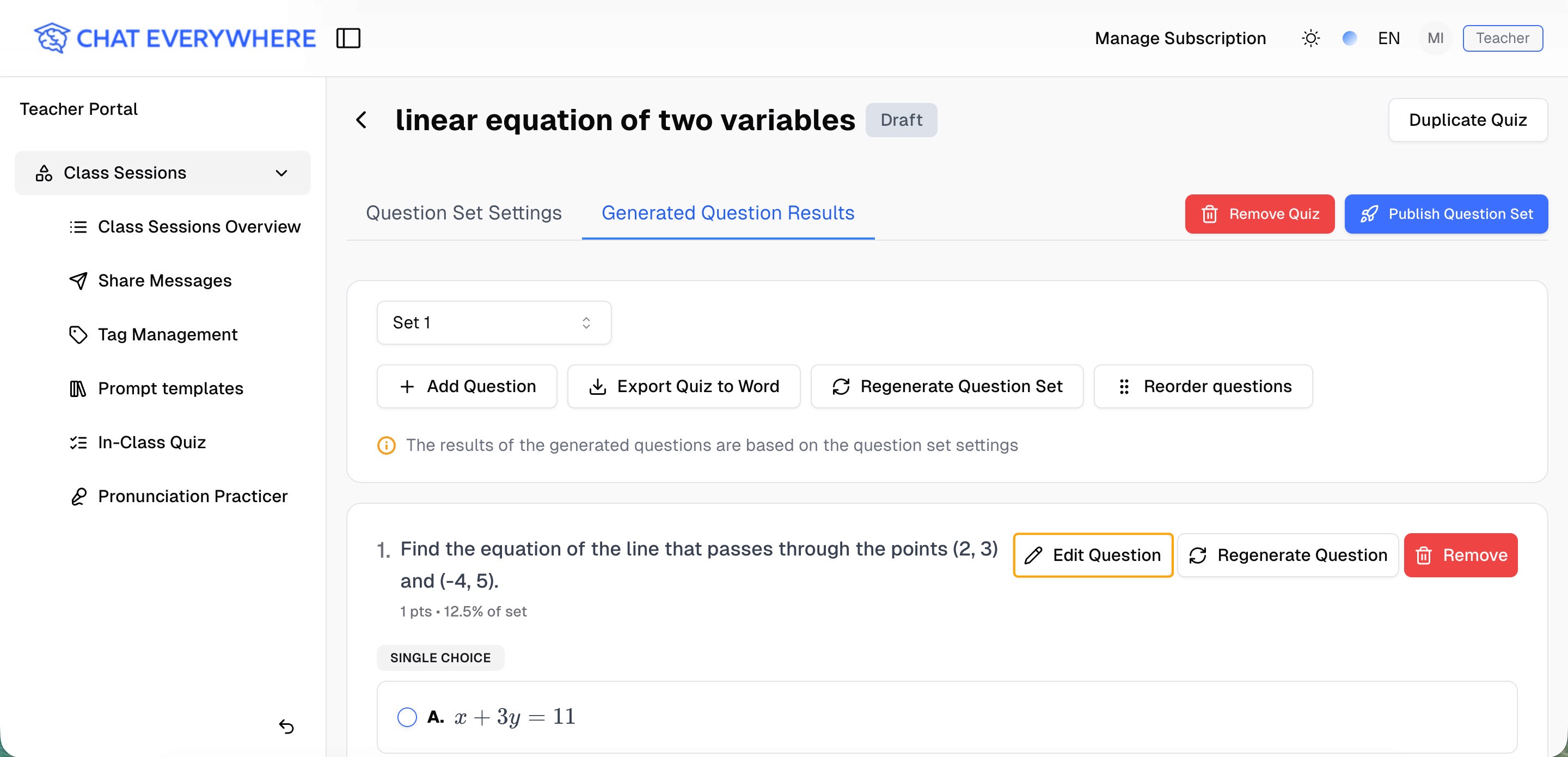
When the questions are generated, you can open the “Edit Questions” view to make final adjustments.
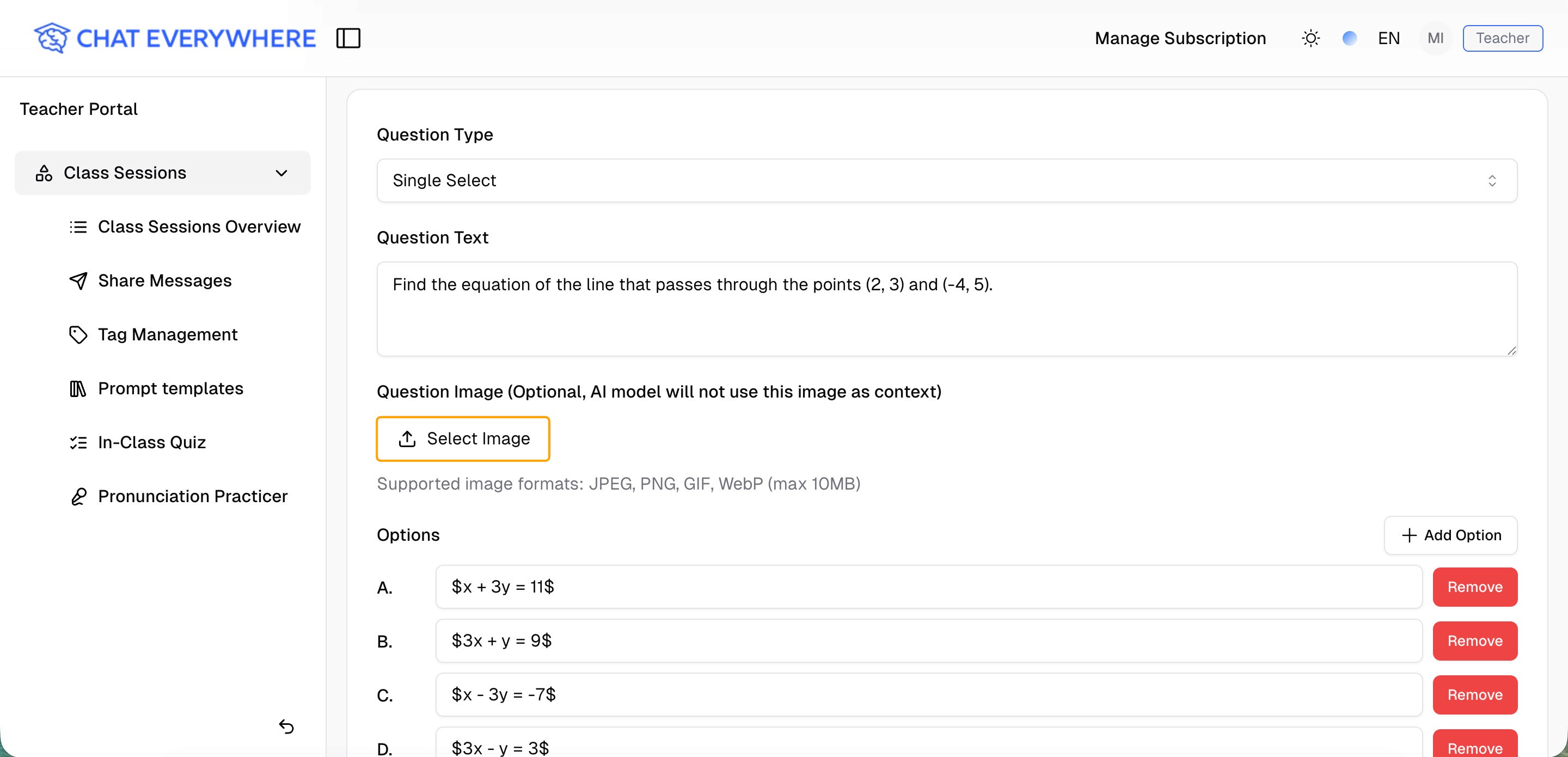
Here, you can modify question wording and answer keys, adjust answer options, add or delete questions as needed, and even insert images such as math diagrams, reading passages, experiment photos, or charts.
Step 3: Publish the quiz to students and let ChatEverywhere grade for you
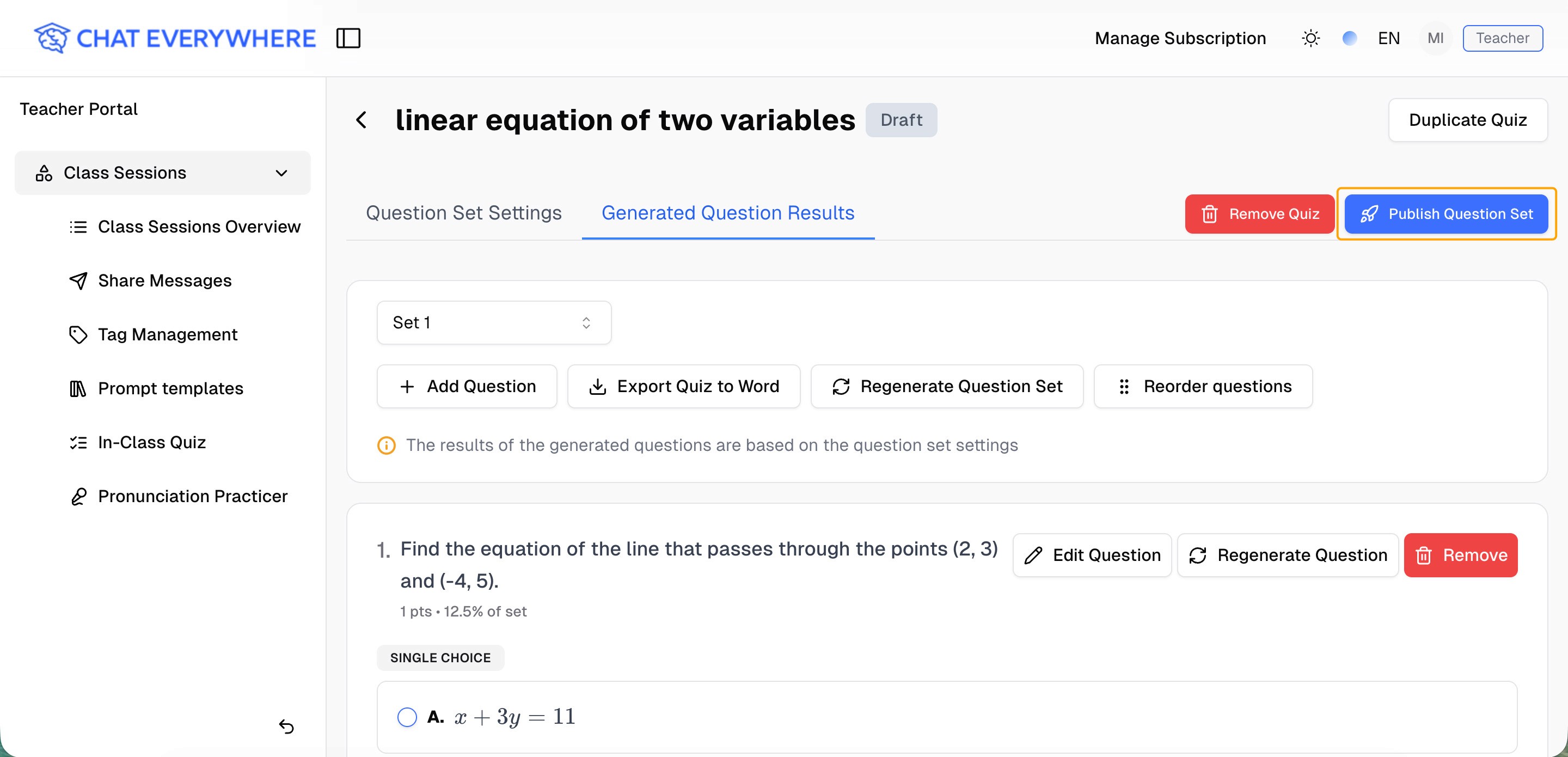
Once your question set is ready, you can publish the quiz to your students. On the question set page, click “Publish Question Set”, and you’ll see two main options.
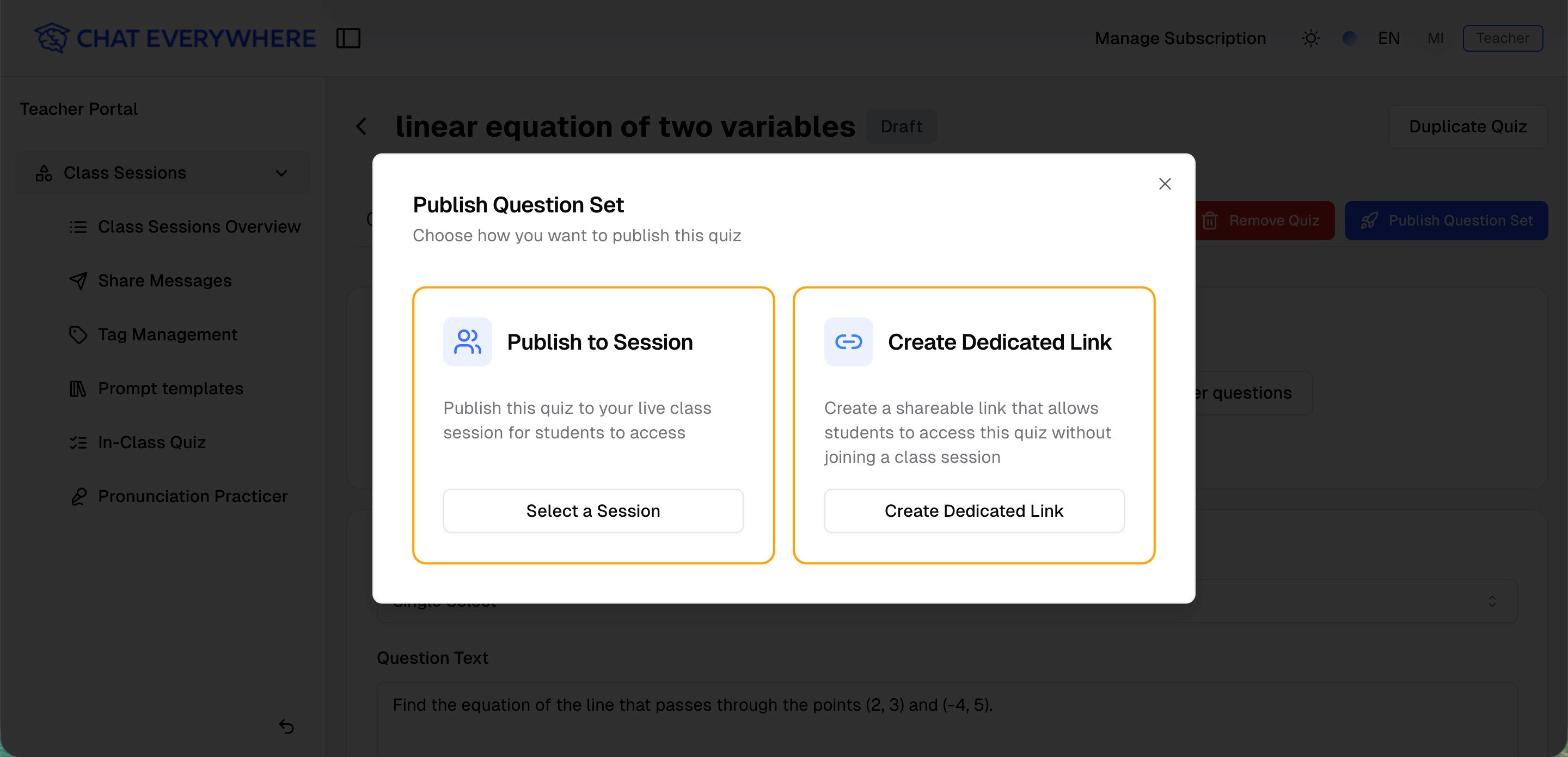
The first option is to Publish to Session. If you’ve already created classroom groups inside ChatEverywhere, you can select a class and assign this quiz directly to those students to complete during class time or within a specific time window.
The second option is to Create Dedicated Link. In this case, the system will generate a unique URL and a QR code for this quiz. This works especially well if you want to set it as homework or after‑class practice.
Throughout this process, students do not need to log in to any account. They simply scan the QR code or click the link, and they can immediately start answering the quiz or practice questions.
As soon as a student submits their answers, ChatEverywhere will automatically grade that student’s quiz. It will determine which questions are correct or incorrect, calculate the total score, and store the full response and score in your teacher dashboard.
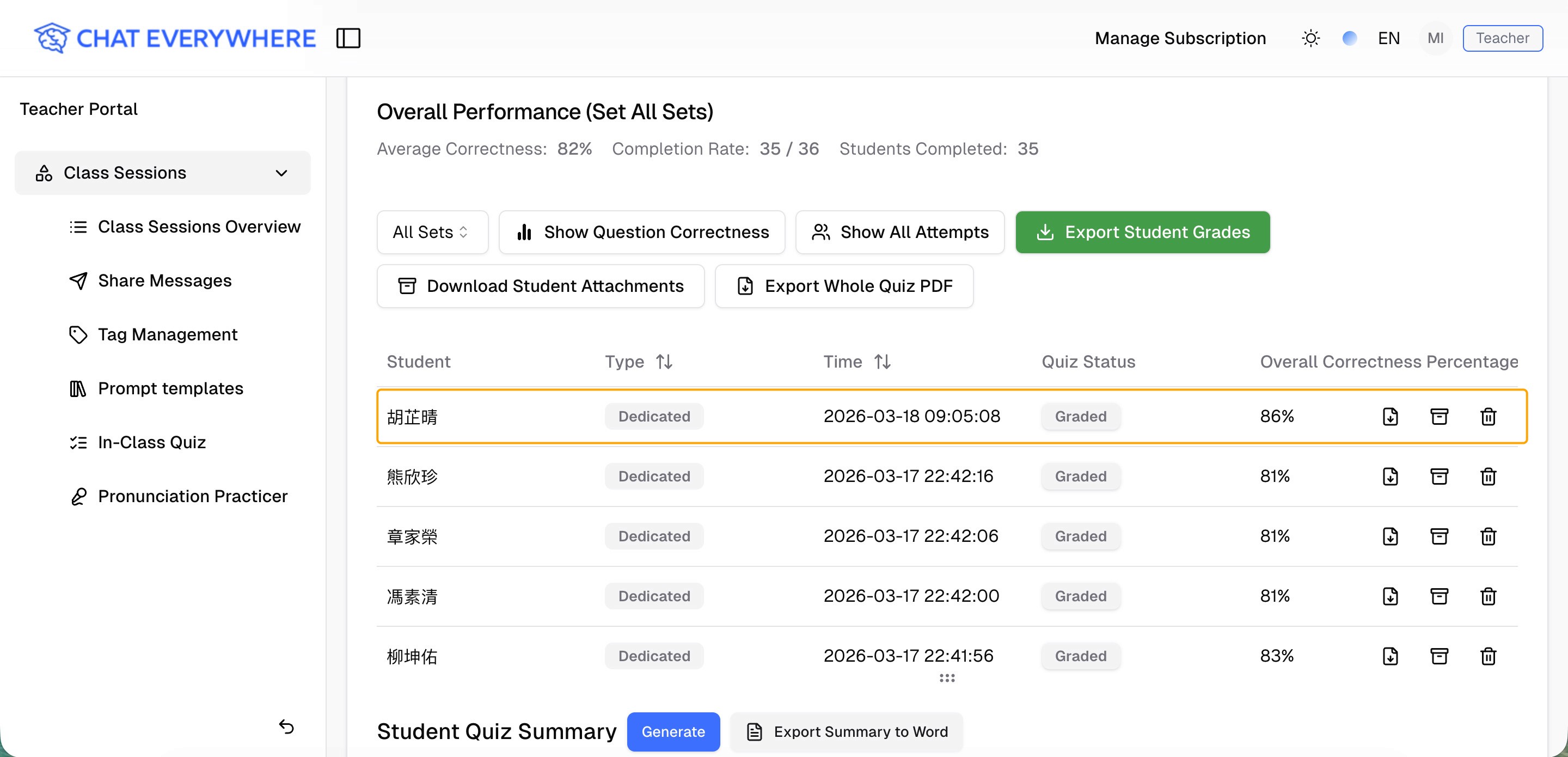
One‑click “Student Quiz Summary”: see class performance at a glance
On the quiz results page, you can simply click “Generate Student Quiz Summary”, and the system will automatically compile a complete analysis report for you.
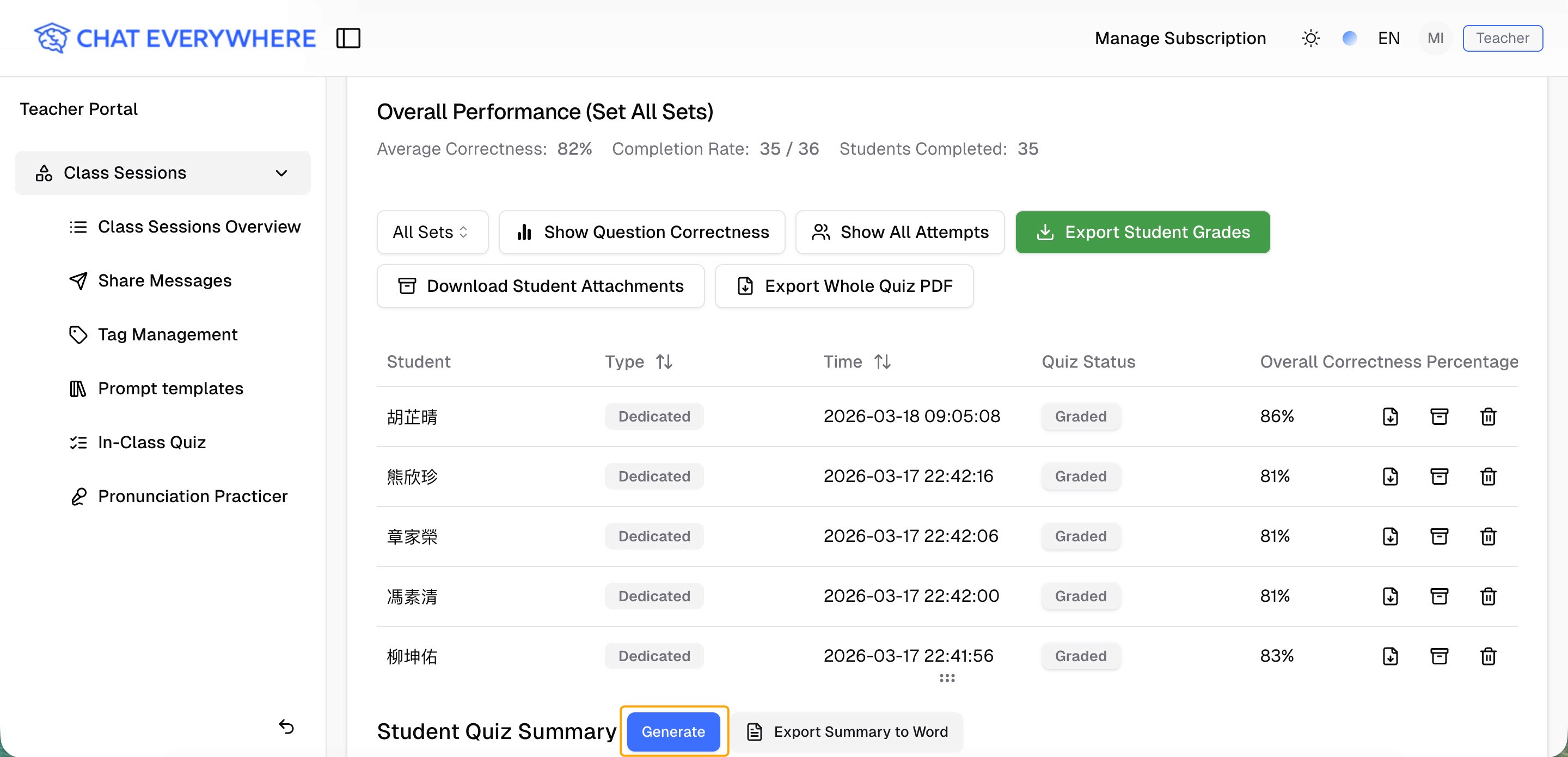
This summary does much more than just list scores. It clearly shows how each student performed on each question, their accuracy rate, their total score, the class average, the highest and lowest scores, and how scores are distributed across the class. It also highlights which questions were most frequently missed, helping you quickly identify common weak points and potential learning gaps.
Based on this information, you can decide which concepts to revisit, reinforce, or include in your next review or intervention, without having to manually count, chart, and calculate everything yourself.
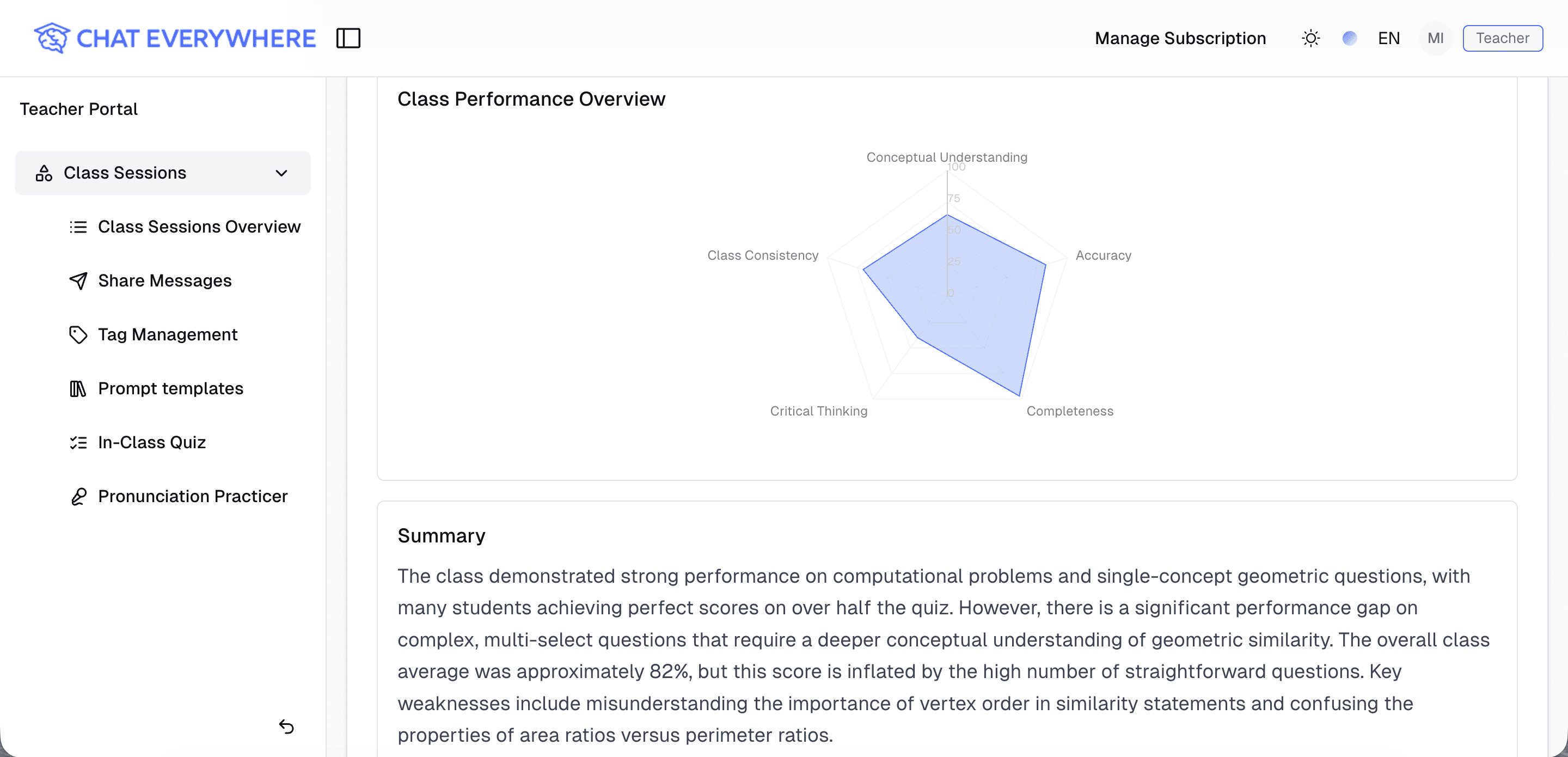
In other words, the work that used to require a lot of manual grading and spreadsheet work can now be completed by AI in just a few seconds.
Let ChatEverywhere handle the heavy lifting of grading and tracking data, so you can focus on the uniquely human work that only teachers can do: teaching, guiding, and inspiring your students.